
How to design your listing cover image
Your cover is 16:9, but the marketplace shows a wide strip of it. Put your one subject in the centre box of this template and it reads on every card and every deal page.

One box is seen everywhere
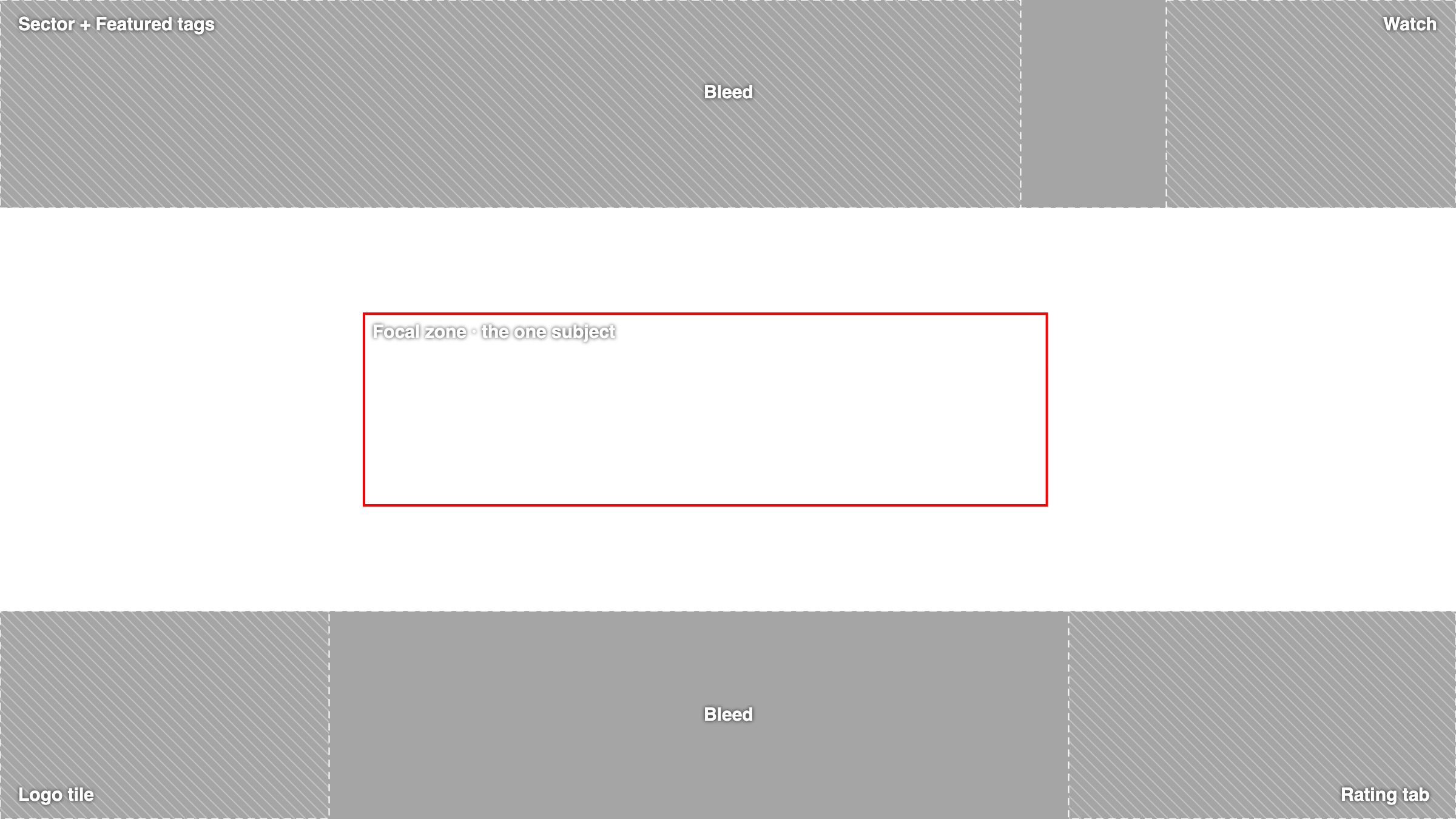
The red focal zone is the only area shown on every card and every deal header, clear of the tags, Watch button, logo tile and rating. The guides are percentages, so they fit any 16:9 size.
Download the template
2400 × 1350. Every zone is a named layer you can lock.
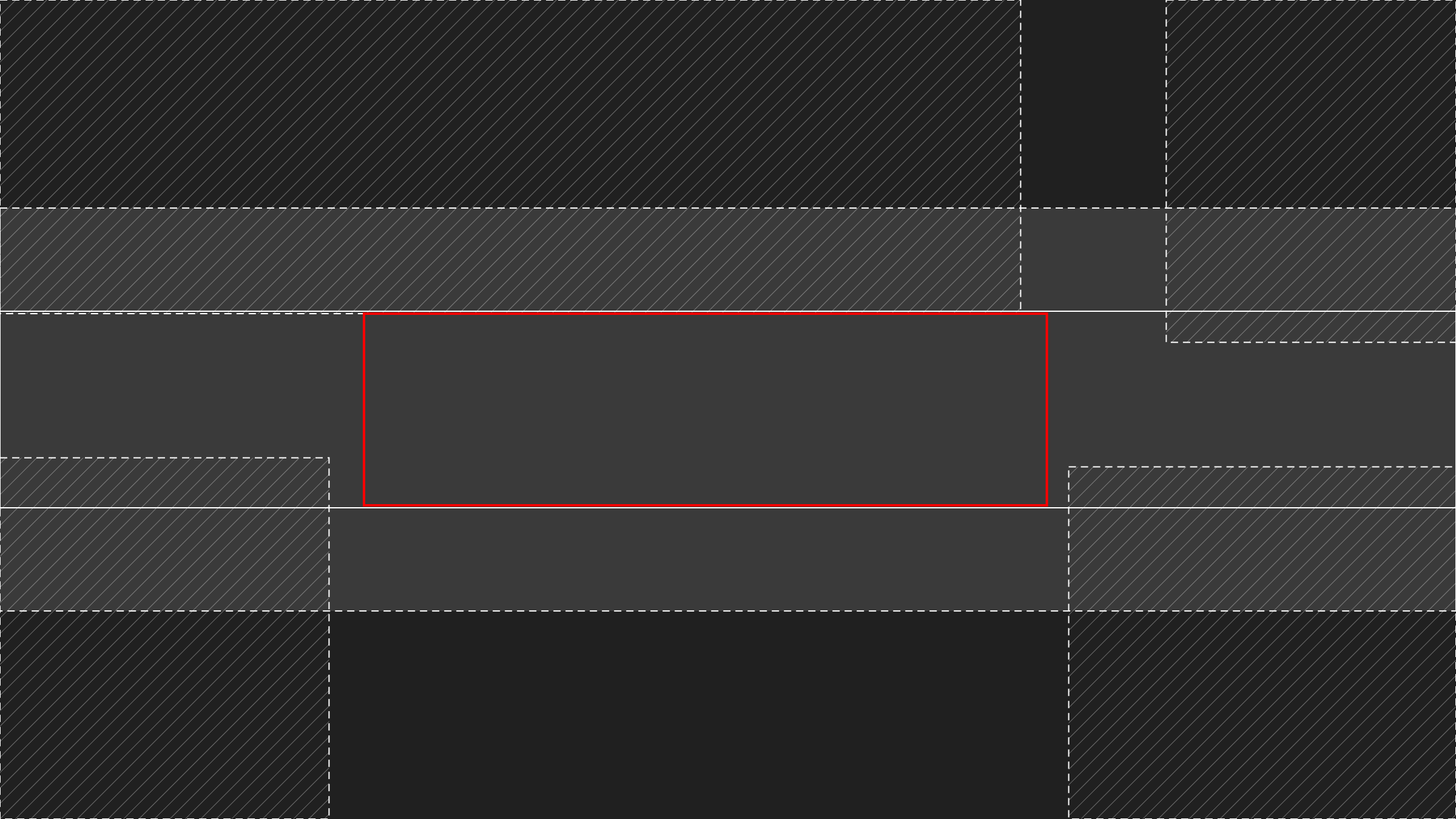
SVG opens in Figma, Illustrator and Affinity. Use the PNG as a locked top layer in Photoshop or Canva.
The zones
Zones of a 16:9 listing cover.
| Zone | Any 16:9 size | On 2400 × 1350 | Use it for |
|---|---|---|---|
| Focal zone | x 25 to 71.9%, y 38.3 to 61.7% | x 600 to 1725, y 518 to 833 | The one subject |
| Focal band | Full width, y 38 to 62% | y 513 to 837 | The subject's wide continuation; nothing that must be read |
| Card band | Full width, y 25.4 to 74.6% | y 344 to 1007 | Supporting shapes and colour |
| Bleed | y 0 to 25.4% and 74.6 to 100% | y 0 to 344, 1007 to 1350 | Background or texture that can be cut anywhere |
| Corner, top left | x 0 to 70.1%, y 0 to 38.3% | x 0 to 1682, y 0 to 518 | Plain, mid to dark tone (sector and Featured tags) |
| Corner, top right | x 80.1 to 100%, y 0 to 41.8% | x 1923 to 2400, y 0 to 564 | Nothing important (Watch button) |
| Corner, bottom left | x 0 to 22.6%, y 55.9 to 100% | x 0 to 542, y 755 to 1350 | Plain, mid to dark tone (logo tile or initials) |
| Corner, bottom right | x 73.4 to 100%, y 57 to 100% | x 1763 to 2400, y 770 to 1350 | Nothing important (Rating tab) |
Do and do not
On a card your cover shows at about a fifth of its size. Your name, one-liner and figures already print beside it.
Do
- Use your own brand colours for the background.
- Put one subject inside the focal zone of the template.
- Pick a wide subject: a product on its side, a landscape, a pattern, or one part of your product shown large.
- Keep the four corners plain and mid to dark, so white tags and initials read on top.
- Export at 2400 × 1350, JPEG or WebP, sRGB, under 5 MB, with no transparency.
- Check all six crops on this page before you upload.
Do not
- Add words: no company name, tagline, figures or calls to action.
- Add your logo. It shows on its own tile.
- Add charts with values, claims, awards or press marks. Claims go through review as text.
- Use a tall subject: a standing person, an upright phone, a tower.
- Use aubergine, purple or orchid as the main colour. It looks like an empty listing.
- Add frames, borders, rounded corners or shadows. We add our own.
- Shrink a whole screen into the centre. Crop to one part and show it large.
How to use it
Fictional companies. Each uses its own brand colours, one wide subject in the focal zone and plain corners.
Step 1: Ledgerline
One row of the invoice list, enlarged to fill the focal zone. Text replaced by bars, because words do not survive a crop. Rows below fade into the card band; corners stay flat teal.

Figure 1. Ledgerline Step 2: Tidewell
The bottle lies on its side, so it stays whole at 7 : 1. The floor line runs full width through the focal band. Flat terracotta corners, dark enough for white tags.

Figure 2. Tidewell Step 3: Fernmoor Advisory
A setting-sun mark in the brand green and ochre. The horizon line carries the mark across any width. Nothing to photograph and nothing that can be cut in half.

Figure 3. Fernmoor Advisory
Guides from the team that builds and supports the founder dashboard.
Still stuck? Email us
Write to support@theangel.app. We reply within two working days.
Can't find it? Email us
Write to support@theangel.app. We reply within two working days.